Scheduling a post
Draft, preview and place a post on your calendar for any channel.
How to create a post from scratch
You can create a new post from anywhere in the Willow platform by going to the green + button in the top-right of your screen.
If you want to create a post on a certain day:
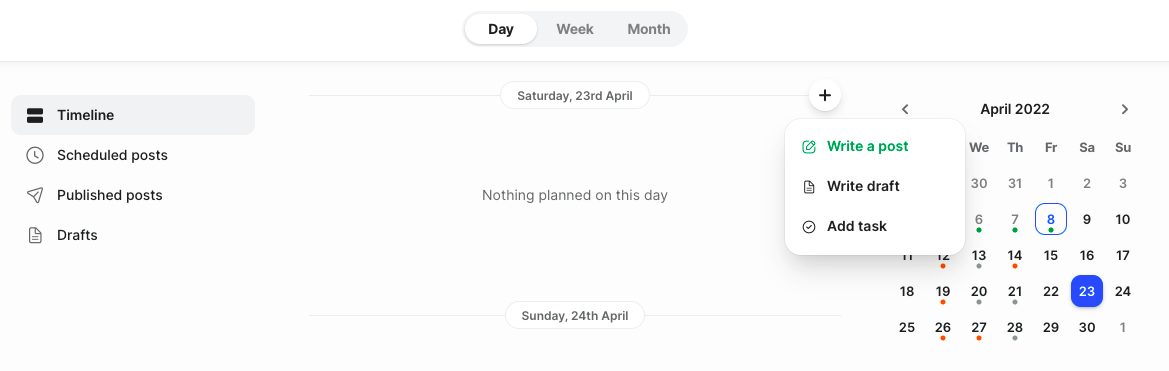
- Go to Calendar - Day view, pick a date in the future and click the + sign that appears when you hover over the day and then Write a post.
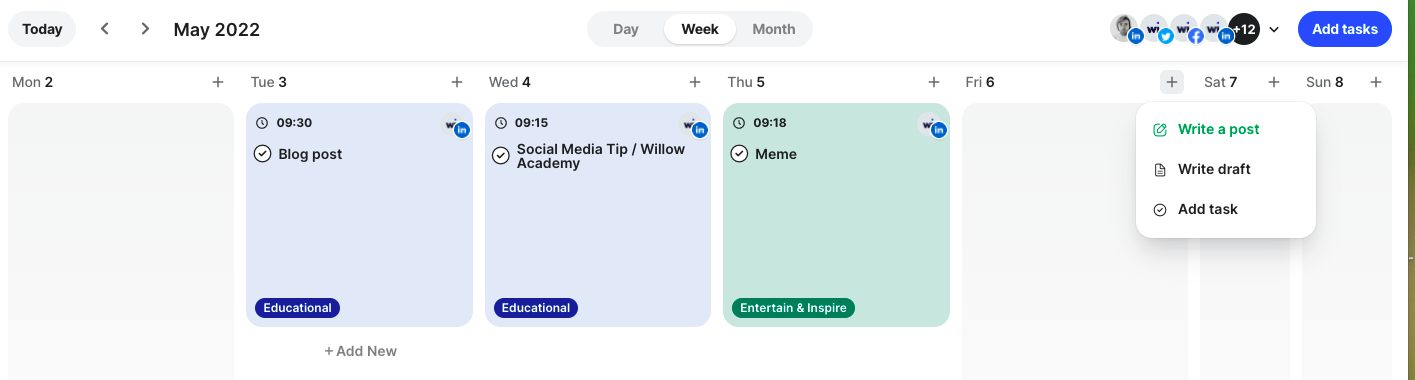
- Go to your Calendar - Week or Month view and click the + sign that appears when you hover over the day and then Write a post.
How to schedule an article
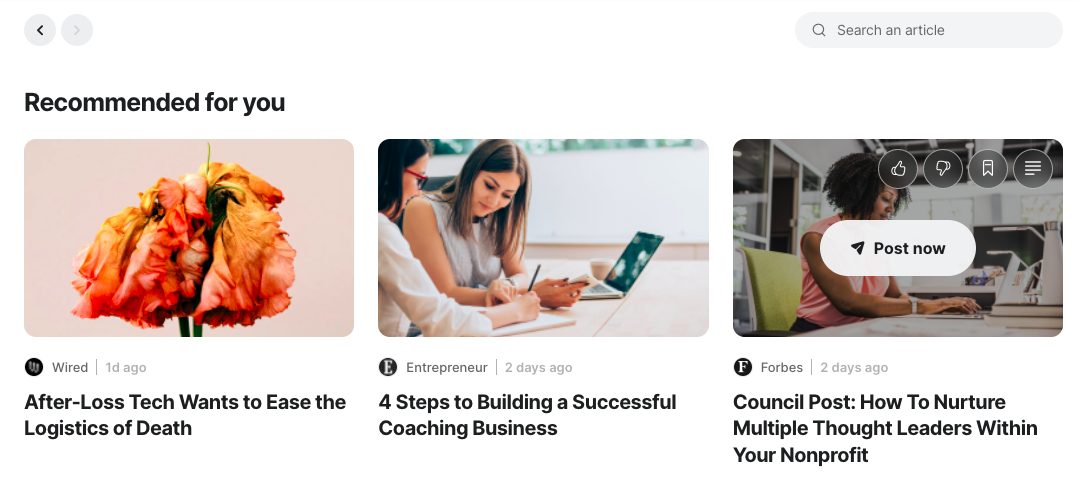
You can also go to News, hover over an article you like, and click Post Now to create a post from it.
Auto-scheduling vs Setting a date & time
The Auto schedule feature of our post creator is designed to take all thought out of scheduling.
If you have different tasks planned out in your content calendar, then you can use the "Auto schedule" feature to populate them accordingly. For example, if you have "News Article" tasks in your content calendar, then the "Auto schedule" feature will chronologically populate these tasks when scheduling articles from our News feed. If you have a "Personal" task in your calendar and you assign a post the category of "Personal" and hit "Auto schedule" it will populate this task.
If you don't have any corresponding tasks planned out in your calendar, then the "Auto schedule" feature will choose the best time within the next three days to publish your post.
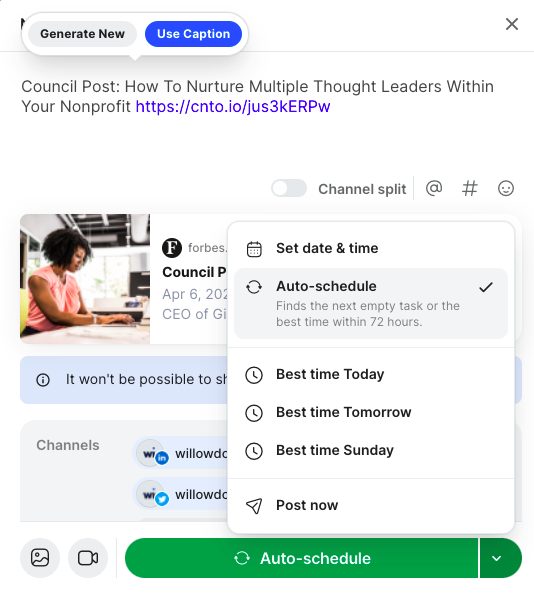
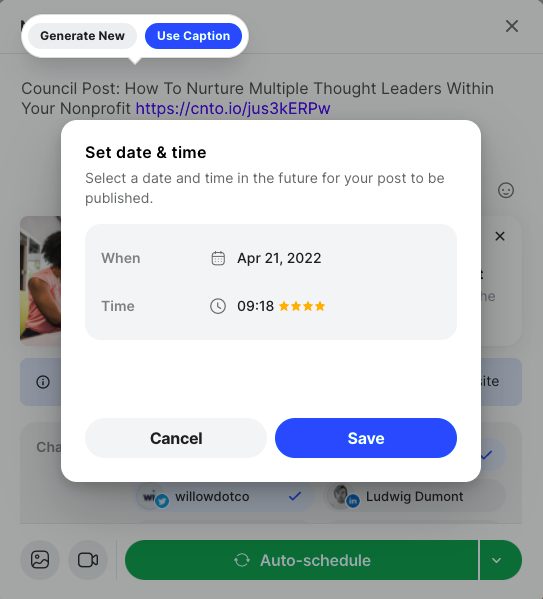
For Events & Special Days eg. Christmas or a Webinar, you can also choose a particular moment to schedule your post at by choosing Set date & time. You’ll then be prompted to choose a day on the calendar and a time slot. Learn more about how we rank times to post.
Remember, all the times are according to the timezone you selected.
Still stuck?
Your coach answers within 1 business day — no ticket queue.