Setting up the keyword monitor
Follow topics relevant to your industry so you never run out of things to share.
With Willow’s Keyword Monitor you get daily content based on your preferred keywords. Keyword Monitor will search for your keywords in Willow’s database of high quality news articles and on Google News. Thanks to several filters and conditions you can search for very targeted content.
If your business is often mentioned in the News you will be able to track those News Articles too.
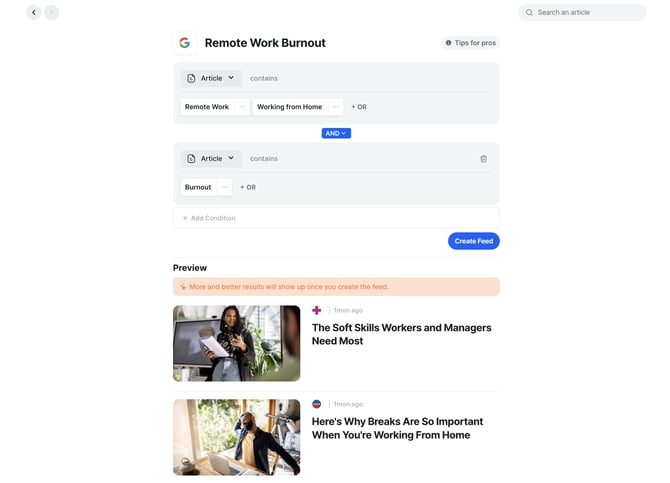
How do I create a new Keyword Monitor?
1. Navigate to the sidebar and choose explore
2. Click the Keyword Monitor item
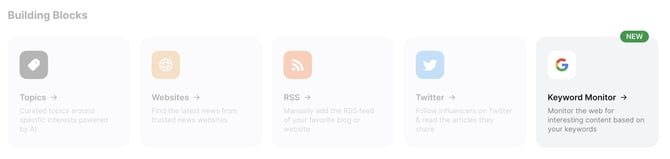
3. Enter the keywords you want to search for
4. Add or modify conditions and filters.
5. Click the Create feed button
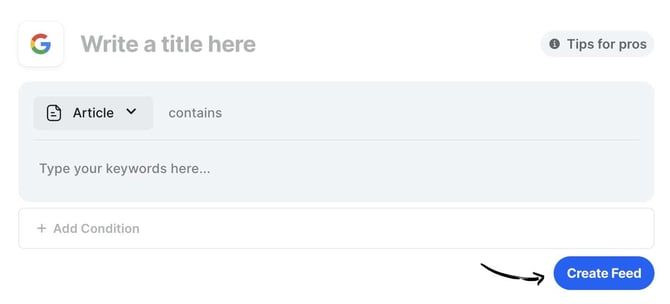
Warning: It takes between 1 and 10 minutes before you will see the full result in your Keyword Monitor.
Note: The content in your keyword monitor is being updated every 6 hours
How do filters and conditions work?
Filters
There are four different filters.
- Article filter: search for keyword(s) in an entire text of an article.
- Text filter: search for keyword(s) in a title of an article.
- Language filter: search for English and/or Dutch articles (only available when you’re using another filter).
- Website filter: search for a specific websites or keyword(s) on a specific website.
⚠️ Note: Some websites will not work with this filter. The website has to appear on Google News, be part of the Willow Verified Sources or been added by you (RSS).
Conditions (OR, AND & NOT)
There are three different type of conditions: OR, AND & NOT. The example below consists of three condition groups:
- Within a condition group the OR condition applies.
- Between the condition groups the AND or NOT condition applies.
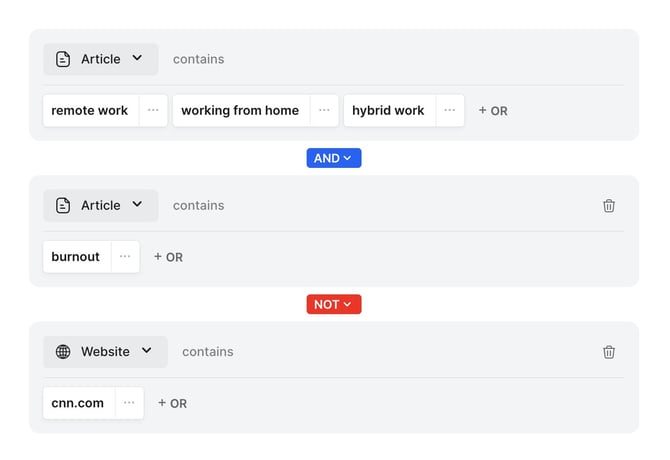
In this example we’re looking for:
- Articles that include the words “remote work” OR “working from home” OR “hybrid work”
- Articles that include one of the words above AND include the word “burnout”
- Articles that are NOT from the website cnn.com
Additional tips for setting up a keyword monitor
When entering your keywords you have the option to find an exact match or a partial match. Standard Willow will always look for exact matches. When you add an asterisk (*) behind or in front of a word Willow will be looking for partial matches.
Here’s a good example:
Exact Match for Remote Work
Remote Work ✓
Remote Workers ✗
Remote Working ✗
Partial Match for Remote Work* (note the asterisk at the end)
Remote Work ✓
Remote Workers ✓
Remote Working ✓
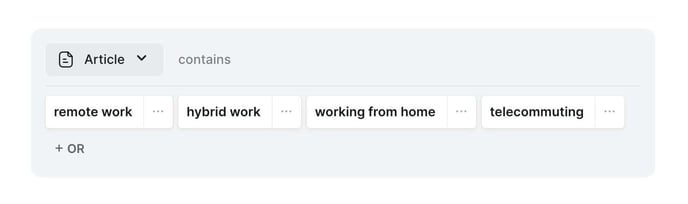
Tip 2: Use synonyms of the same word
If you want more and better results try to come up with synonyms. For example you would like to find articles about remote work. Try to add synonyms or related words in order to find more articles.
Still stuck?
Your coach answers within 1 business day — no ticket queue.